

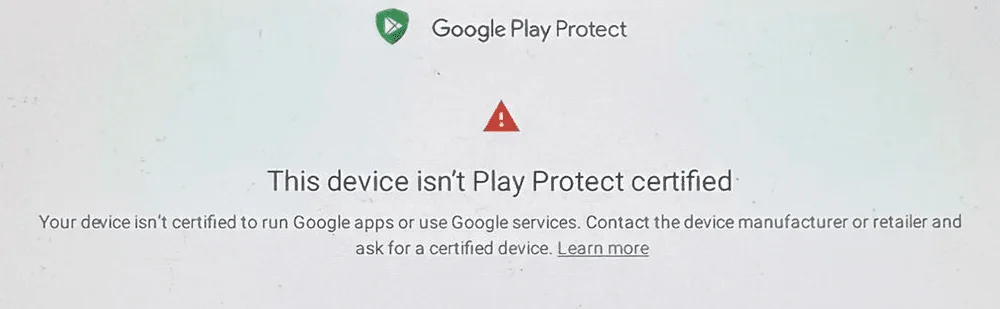
If you see “This device isn’t Play Protect certified”, start here.

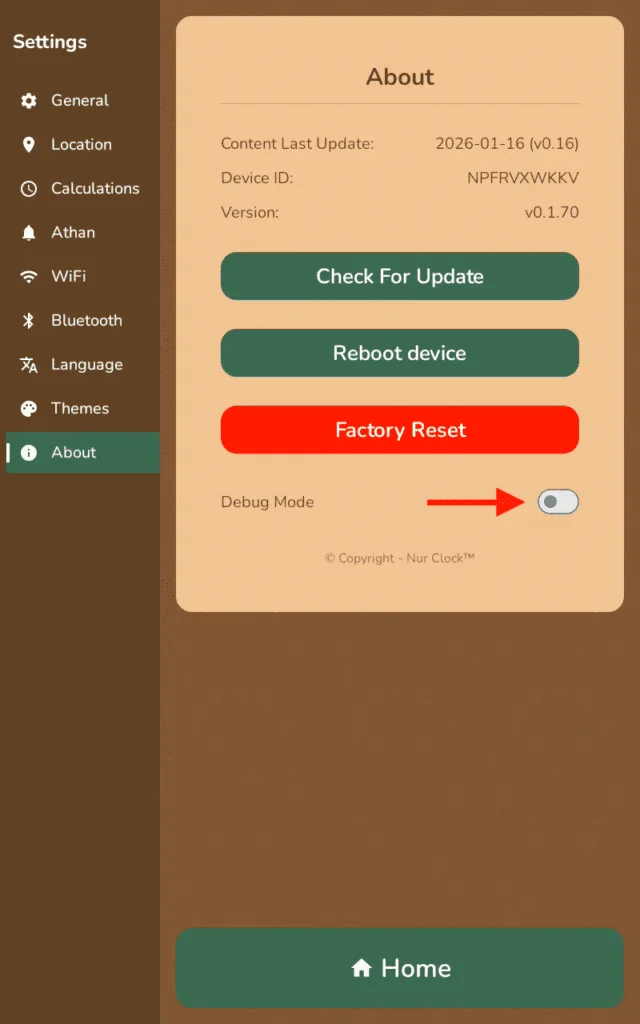
Open Settings → About and make sure Debug Mode is off. In most cases this alone fixes it.

Don’t sign into Google Play, install other apps or change Android settings. Nur Clock is a dedicated device, and these can trigger the warning.
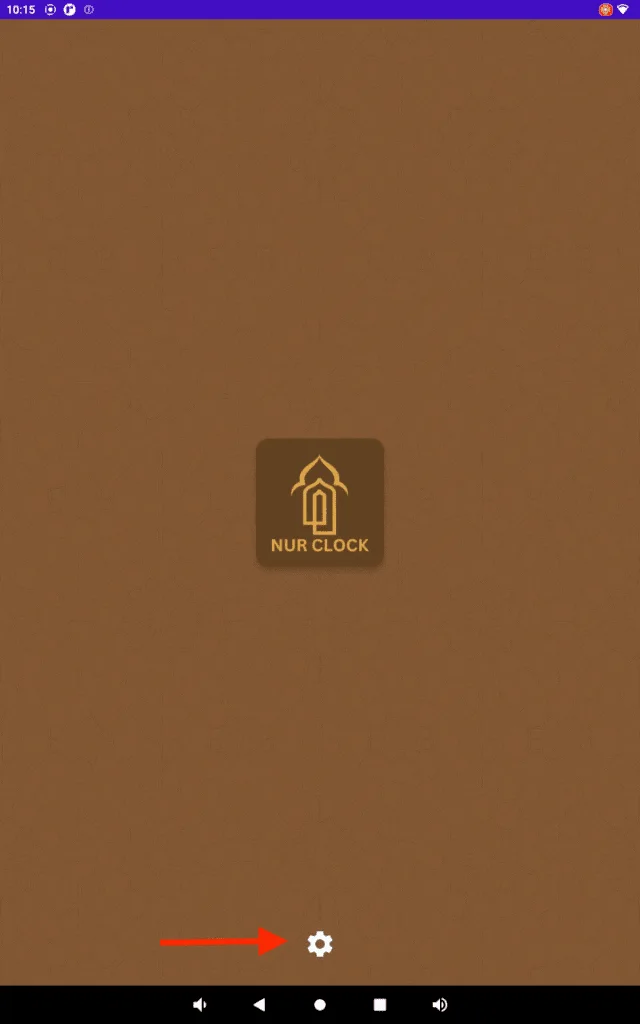
Still seeing it? Turn Debug Mode on in Settings → About. Swipe up, tap the circle button to reach the Android home screen, then tap Settings (the gear icon).
Go to Apps & notifications → See all apps → Google Play Services → Storage & cache → Clear storage → Clear all data, and confirm. You’ll return to the Nur Clock app.
Go back to Settings → About, turn Debug Mode off, then tap Reboot device and choose Yes. Wait for the clock to restart fully.
Earlier models
“This device isn’t Play Protect certified”
This message almost always appears when Debug Mode is on, or when someone signs into Google Play to install extra apps. Nur Clock doesn’t need either: it works out of the box, with no Google sign-in.
Nur Clock 8-inch and 10-inch (1st generation)Settings → About → Debug Mode
Keep Debug Mode off during normal use. Still need help? Email support@nurclock.com.
Was this helpful?
Thank you for letting us know.
Sorry about that. Tell us what you were looking for and we’ll help.
Related articles
Still need help?
Email support@nurclock.com and the team that makes Nur Clock will reply.